
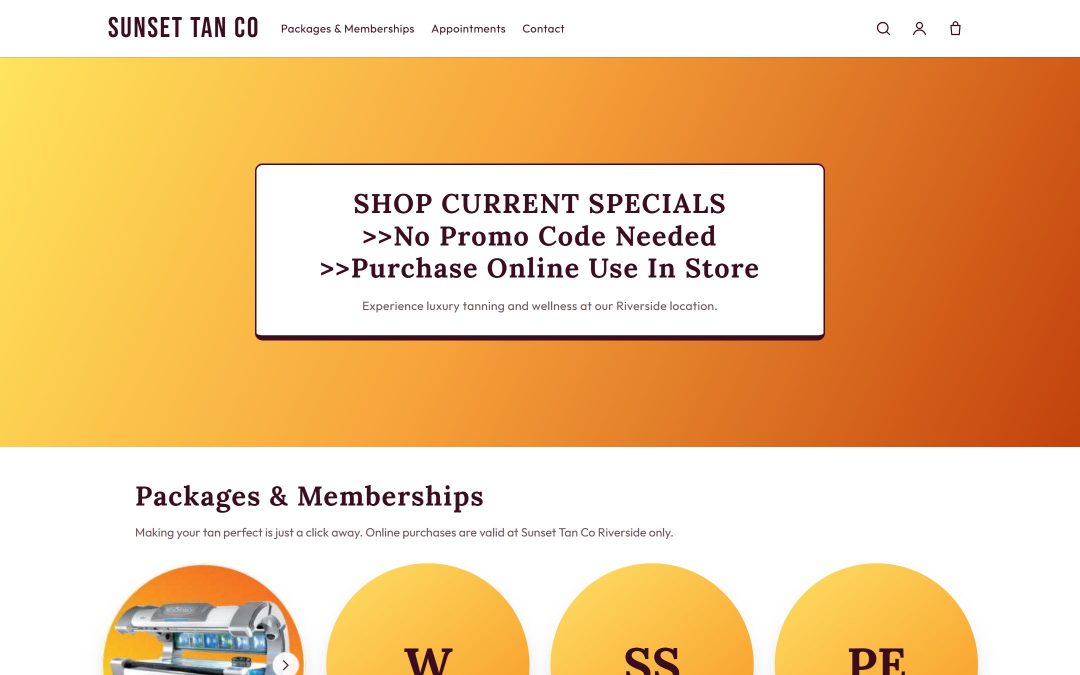
A shop page that runs on your till's catalog
Each salon gets a public shop page at its own address on TanVision. You choose which packages and products it lists, file them into categories you name (tanning, spray tan and retail, for example), and put the categories in the order you want. Five of the templates draw one section per category, in your order; Boutique shows each category as one product, with its packages as the options.
Prices come from the same catalog the till uses. When a client places an order, the server prices it from that catalog and saves the total with the order, so the desk can see what the client was shown. An order paid at the desk is priced at the till when the client collects, like any counter sale. An order paid online is priced at checkout by the same rules as a counter sale.
Six templates, one way to order
| Template | What it suits |
|---|---|
| Classic | A photo at the top, packages in a row, hours and directions |
| Bold | Dark, full-width imagery and large prices, for a salon that sells on atmosphere |
| Minimal | Type and prices with almost no imagery, every price visible at once |
| Storefront | Address, hours and phone pinned beside the prices, for a salon clients call before they visit |
| Showcase | A full-width opening with packages as large cards and the first one featured |
| Boutique | A light shop with your logo centered, round product photos and options in a pop-up |
The look changes between templates; the basket and the order code do not. No template can bring its own Add button, so every shop places orders the same way and lands them on the same till.
Arrange the Boutique page yourself
On the Boutique template you lay the page out in Settings > Shop > Page sections: a brand color, up to 8 menu links, and up to 12 sections of three kinds.
- Banner: a photo edge to edge with a boxed title and text.
- Packages grid: everything for sale, under your own heading. Every page has one, so the shop can never lose its catalog.
- Image with text: a photo beside your words, with a button that opens a product's options or follows a link.
The packages in a category show as one product with its options, cheapest first, so 3 visits, 6 visits and a month on the same bed read as three ways to buy one thing. A category can carry up to 8 photos, and clients swipe through them on the card and in the options panel. A menu link can point at the packages grid, a product or a web address.
Your photos, stored with your shop
Upload your logo, banners, section photos, category photos and each item's own photo from a phone or a computer. Large photos are shrunk before they upload. If your photos live on another website today, Keep copies puts a copy of every one of them in your shop's own storage and points your shop at the copies, in one press.
Removing or replacing an uploaded photo deletes the stored file once nothing in your shop uses it, not only the picture on the page. Uploads that were never saved are cleared out once they are two days old.
Preview before you publish
A shop stays off until you publish it. Before then, your own signed-in staff can open it under a bar that says it is a preview, and search engines are told not to index it. Everyone else, including staff of other salons, sees a page not found. Once published, the shop page can be indexed like any public page.
Client accounts and orders
Switch on customer accounts and clients can sign in with their phone number and a one-time code. The code is texted through your salon's own texting account; if a text cannot be sent, the code appears on your desk screen for staff to read out. Only clients already on your books can sign in. Signing in never creates a client, so your consent form stays the one public way onto your list.
With accounts on, each item gets an Add button and clients can place an order. An order the client will pay for at the desk is a request, not a sale:
- It takes no money and grants no package. It does not hold stock either, and the shop says so.
- It appears on the till as waiting from the shop, and the desk rings it up like any counter sale.
- It is marked collected only after that sale succeeds.
An order paid online at checkout is a sale from the start. The next section covers how that works.
Signed-in clients also get their own account page: the packages they hold, what is left on each, when each expires, their recent visits and whether a waiver is on file. It shows no prices paid, no staff names and no verdict on whether they can tan today. That decision stays with the desk.
Paying online at checkout
The shop can take payment at checkout through TanVision's built-in card processing, connected to your salon's own merchant account. The client pays on the card processor's secure payment page, and TanVision never sees the card number. Settings > Shop > Payment at checkout has three choices: Off, the default, where orders are reserved online and paid for at the desk; Pay now or at the desk, where the client chooses; and Pay now only.
- A package paid online goes on the client's account straight away. Nobody at the desk has to ring it up.
- Products paid online are handed over at the desk, and the till lists what is still waiting to be handed over. A product you count in stock can be paid for online only while enough are on the shelf.
- The sale is written by the same rules as a counter sale, with the same prices, taxes, promotions and member rates, so it reads like any other sale in the reports.
- The client picks a receipt by email, text or both, and the choice is remembered on their account for next time.
- No card is kept on file from a shop payment. A refund for an online payment is made in the card processor's own account, and then the sale is voided in TanVision.
Related features
The shop sells from the same catalog as memberships and packages and retail and lotion inventory, new clients join through consent forms, and orders are rung up on the tanning salon POS. To look at the templates with your own packages, book a demo.
Common questions
- Can clients pay for packages online?
- Yes, where the salon turns on payment at checkout. The client pays on the card processor's secure page, and the package goes on their account straight away. With payment at checkout off, an order is paid for at the desk when staff ring it up.
- Do I need a web designer to build the shop?
- No. You pick a template, write the words, upload photos and file your items into categories yourself in Settings > Shop, and on the Boutique template you arrange the page's sections too. What no template changes is how the basket and orders work, which is the same in every shop.
- Does an order reserve stock or start a package?
- An order paid at the desk does not. It takes no money, grants nothing and holds no stock, and the package is granted and the stock moves only when the desk rings it up as a sale. An order paid online is a sale at checkout: the package goes on the account at once, and products are handed over at the desk.
- Who can see my shop before I publish it?
- Only your own signed-in staff, under a preview bar. Everyone else gets a page not found, and the preview is not indexed by search engines.