
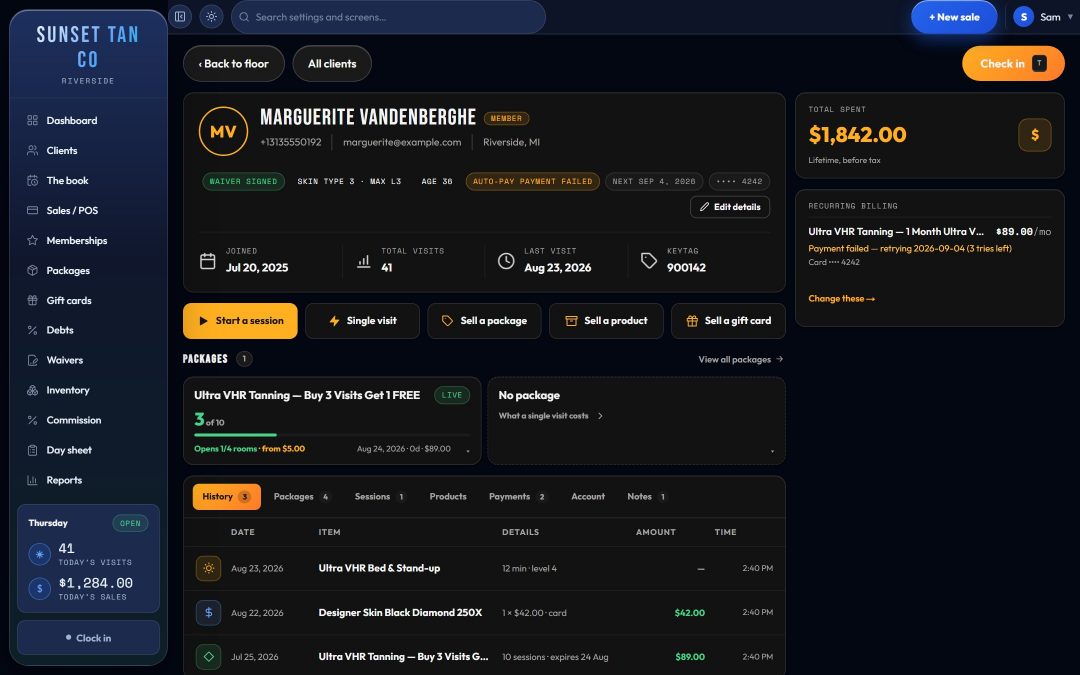
One record, wherever the desk looks someone up
Type a name or scan a keytag on the floor board and the client's record opens in a drawer beside the rooms. The search matches the keytag code, name, phone numbers, email, address and notes, so a keytag printed for your old system still finds the right person wherever its code was stored on the record.
The record looks the same in all four floor board views and on the full client page, so staff learn one screen. It sits beside the check-in card instead of replacing it: flip to the record, check something, flip back, and the room, the minutes and the package you picked are still there.
From the record, one tap starts a session on a package or as a single visit, or opens the till to sell a package, a product or a gift card with the client already on the ticket.
The facts that decide whether a client can tan
The top of every record shows the facts the check-in gate reads, in the same words the check-in card uses:
- Waiver signed, or No waiver. Without a signed warning statement on file, no session starts.
- Skin type and the highest bed level TanVision's built-in defaults allow for that type, shown as "Skin type 2 · max L2", when your salon uses skin typing.
- Age, worked out from the date of birth on file, flagged when a minor still needs guardian consent.
Beside them sit the date they joined, their total visits, their last visit and their keytag.
If you switch skin typing off, the skin-type badge disappears, so nobody reads a limit the software is not enforcing. Exposure safety explains how skin type and each room's maximum set the minutes.
Packages, and what each one opens
Live packages lead the record. Each card shows the sessions left out of the total, or Unlimited, its state and its expiry, and how many of your rooms it opens, with the cheapest upgrade price for the rest. The arrow on each card opens every room the package covers and what each upgrade costs, the same answer the bed level and upgrade rules give at check-in.
Used-up and lapsed packages move behind a View all packages link, so what a client bought last June is still one tap away. On the full client page a manager can freeze a package or correct one, and every correction records who made it and why. You can let staff freeze and unfreeze packages without giving them anything else, or give a trusted employee the Change a client's package box for the other corrections too.
A history the desk can answer from
Below the packages, tabs split the client's history the way questions come up at the counter:
| Tab | What it shows |
|---|---|
| History | Everything on the record in one list |
| Packages | Every package the client has bought |
| Sessions | Each visit with its date, time, room, bed level and minutes |
| Products | Retail lines such as lotions and eyewear |
| Payments | Every line that took money, whatever it was for |
| Account | What the client owes and every payment against it, if you let regulars run a tab |
| Notes | What the desk has written about the client |
A note can be set to appear the moment the account is opened. The switch sits beside the note and is set per client, so a note like "prefers the stand-up" stays quiet while one you need every visit shows as a band at check-in. The band never blocks the check-in.
Keeping the client list clean
The Clients page sorts everyone into Active, Lapsed and Archived. Lapsed means no visit in 45 days. A client who signed up this morning and has not tanned yet counts as active, so a new sign-up never lands on a win-back list.
Three reports keep the list tidy:
- Possible duplicates: records that look like the same person twice, matched on phone, on email, and on name plus date of birth.
- Incomplete records: clients missing a waiver, a skin type, a date of birth or a way to contact them.
- Client notes: every note on every record, newest first, in one place.
When two records turn out to be the same person, the owner, or a manager the owner allows, can merge them into one. They can also delete a client. One with any history, such as visits, sales or a signed waiver, is hidden rather than erased, so every visit and sale stays in the reports and the record can be restored.
Finding the clients worth a call
The reports page lists every client who has lapsed as of today, by name and phone number, on the same 45-day rule as the Clients page, so the two screens never disagree about who has drifted. The report library adds:
- Client status: active, lapsing, lapsed and never visited, with counts.
- Retention: of the clients who first came in each month, how many were still coming three, six and twelve months later.
- New clients: everyone added in the range, how they were added, and whether they have been back since.
- Client activity: visits, minutes, spend, last visit and what each client holds.
- Where clients come from: how new clients heard about you, from a list of sources you write yourself, and who referred whom. It also counts how many were never asked, so a share reads as a hint until that number is low.
TanVision can text them for you. A text campaign goes to everyone on your texts list, to those not in for 30 days, or to those with no package right now, and "we miss you" texts go out on their own after the number of days away you choose, with a coupon code if you add one. Both go only to clients who agreed to marketing texts, and each shows how many of the clients texted came in within 30 days. TanVision does not send marketing emails today. The text message rules guide covers consent.
New clients add themselves
New clients fill in and sign your consent form on their own phone through your salon's public link, and their record is created the moment they submit. The form always asks for the date of birth the age check needs, and the record keeps the exact wording they signed. See consent forms.
At the desk, Scan ID on Add a client reads the barcode on the back of a US or Canadian driver's license with a 2D barcode scanner and fills in the name, date of birth and address. It warns about an expired card or a client under your minimum age, and the ID number is never stored.
Related features
Client records tie into check-in, memberships and packages, consent forms, reports and loyalty wallet cards. To walk through a client record with your own packages in mind, book a demo.
Common questions
- Does TanVision keep each client's Fitzpatrick skin type?
- Yes, on the client record, when your salon uses skin typing. With it on, a UV room will not start for a client with no skin type on file, and the record shows the type with the highest bed level TanVision's defaults allow for it. Rooms that do not emit UV never ask. Our Fitzpatrick skin types guide covers typing clients at the front desk.
- When does TanVision count a client as lapsed?
- After 45 days with no visit. A client who has never visited counts as active, and a client you archive stays archived whatever the dates say.
- Can a note pop up when a client checks in?
- Yes. Tick the box beside the note and it shows as a band the moment the account is opened. It is set per client, it starts off, and it never blocks the check-in.
- Can another salon see my client list?
- No. Each salon sees only its own data, and the database enforces it. That has been tested by signing in as a second salon and trying to read and change the first salon's records, and nothing crossed over.